


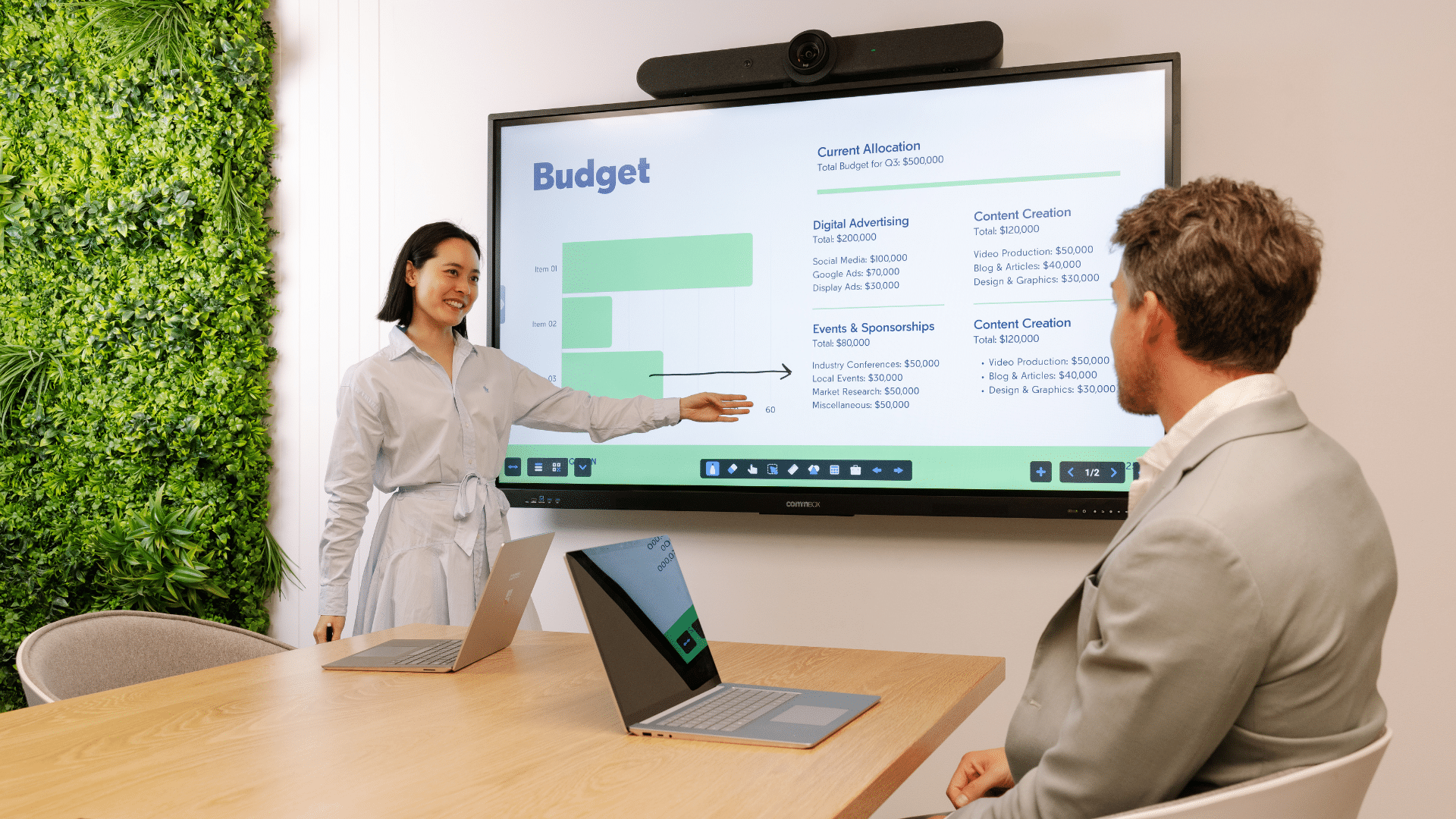
The best meetings are the ones that encourage people to contribute and express ideas openly.
An online whiteboard helps facilitate collaboration – allowing participants to add notes, sketch ideas, organise feedback and turn a conversation into a visible plan, no matter where they are working from.
In this guide, “whiteboard” refers to a shared digital canvas used during an online or hybrid meeting. We explain how to add one to Microsoft Teams, Google Meet and Zoom, and outline when the free built-in tools are enough.
We will also cover when platforms like Miro or Mural may be worth considering, and provide you with some practical tools to run better workshops and client calls.
Which Whiteboard Works With Each Meeting Platform?
Each meeting platform handles digital whiteboards differently. Microsoft Teams and Zoom include their own whiteboard tools, while Google Meet relies on third-party apps.
| Meeting platform | Whiteboard option |
|---|---|
| Microsoft Teams | Microsoft Whiteboard |
| Google Meet | Miro, FigJam or Lucidspark |
| Zoom | Zoom Whiteboard |
| Teams, Meet or Zoom | Miro or Mural as a separate shared workspace |
How to Add a Whiteboard to Microsoft Teams
Microsoft Whiteboard is built into Teams, making it the simplest option for organisations already working with Microsoft 365.
How to open Microsoft Whiteboard during a meeting
- Start or join the Teams meeting.
- Select Share in the meeting controls.
- Under Whiteboard, select Microsoft Whiteboard.
- Choose an existing board or select a New whiteboard.
- Ask participants to add a note to confirm they can contribute.
Before the Meeting Ends:
People within your organisation who have access can continue working on the whiteboard once the call ends. External participants cannot reopen a Teams meeting whiteboard after the call. If ongoing collaboration is required, the board may need to be shared separately with specific guest accounts, where your organisation’s Microsoft settings allow it. Otherwise, export the board as a PNG and send the final version.
How to add a Whiteboard to Google Meet
Before the meeting:
- Install the Miro for Google Workspace add-on from Google Workspace Marketplace. Your Workspace administrator may need to install or approve it for your organisation.
- Create the board in Miro before the call and add any templates you plan to use. Check whether participants can view, comment on, or edit the board. Guests should be able to participate without creating a Miro account when the appropriate access has been selected
During the meeting: - Select Activities.
- Choose Miro from the available apps.
- Sign in to Miro, or start a board without a profile.
- Select an existing board that you have permission to edit, or create a new one.
- Choose whether attendees can view, comment, or edit the board.
- Select Embed board.
- Select Start activity.
How to add a Whiteboard to Zoom
Zoom Whiteboard can be opened directly from a meeting. You can prepare the board beforehand and decide who should own and manage it after the call.
- Start the meeting in the Zoom desktop app.
- Select Whiteboards from the meeting controls.
- Choose New Whiteboard or Existing Whiteboards.
- If opening an existing board, select:
— Collaborating to give meeting participants editing access; or
— Presenting to let participants view the board while you control it. - Select Open Board and invite participants to contribute.
A new whiteboard opened during the meeting is owned by the meeting host. Zoom also allows hosts to grant verified participants continued access after the meeting ends, depending on the organisation’s settings.
The board is saved automatically and can be accessed from the Zoom Whiteboard dashboard. You can export the board as a PDF, PNG or CSV file.
Check These Settings Before Inviting Participants
Before sending the meeting invite, check what settings are enabled for participants.
- Can external participants open the board?
- Can they edit without creating an account?
- Will they still have access after the meeting?
- Who owns the completed board?
- Is access limited to invited users, or can anyone with the link open it?
- Has your organisation approved the whiteboarding tool?
When Are Free Whiteboard Tools Enough?
The free whiteboard tools built into your meeting platform are often enough for simple, short-term collaboration. The inbuilt Microsoft and Zoom whiteboard tools include templates and features that support brainstorming, voting and short workshops.
The built-in option is perfectly fine for when:
- the meeting is mainly internal
- participants already use the same platform
- the activity will be completed in one session
- you need a quick brainstorm or annotation space
- The board doesn’t require long-term external access
For these types of meetings, staying with Teams or Zoom is usually the simplest option.
When Miro or Mural Could Be Worth It
A dedicated whiteboarding platform becomes more useful when the board needs to support an ongoing process.
Consider Miro or Mural when:
- your organisation runs meetings across different video platforms
- clients need controlled access after the meeting
- facilitators need private idea generation or timers to guide participants through a meeting
- teams need shared or branded templates
- the board will remain active between meetings
- ideas and actions need to connect with systems like Jira or Azure DevOps
Turning Whiteboard Sessions Into Clear Business Actions
To get the most out of your whiteboard business sessions, ensure that you have a process or post-meeting analysis template. You should also have a dedicated space for storing the board and specifying who will have editing access.
Before closing the meeting, review the board with participants and confirm the decisions made, actions required, responsible owners, and deadlines. Any unresolved questions should be moved into a clearly labelled follow-up area rather than left among the workshop notes.
Afterward, share a short summary alongside the board so participants do not have to interpret the full canvas themselves. Review access permissions at the same time, removing public links or editing rights that are no longer required.
Using an Online Whiteboard in a Hybrid Meeting Room
Digital whiteboards are not only useful for remote meetings. In an office, the same whiteboarding software can be opened on an interactive screen, allowing the team to work together from one shared display.
The board can be displayed on an interactive screen in the meeting room, where a facilitator can move notes, group ideas, and guide the discussion. Remote participants join the same board from their laptops or tablets and add their own ideas in real time. People in the room can also contribute from their devices or have input directly on the screen.
Learn how interactive screens differ from interactive whiteboards and which option may suit your meeting room.
Quick Troubleshooting Tips
Why Can’t Participants Edit the Whiteboard?
Check the board’s sharing permissions first. In Zoom, an existing board must be opened in Collaborating mode rather than Presenting mode. In Teams, external collaboration may need to be enabled by your Microsoft 365 administrator. Ask one participant to add a test note before the activity begins.
Why Is Miro Not Appearing in Google Meet?
Confirm that the Miro for Google Workspace add-on is installed and permitted by your organisation’s administrator. The integration currently requires a supported browser and does not work in Chrome Incognito or Google Meet Companion mode. Participants may also need the add-on installed to access it through Meet.
Why Can’t Guests Access the Whiteboard After the Meeting?
Post-meeting access depends on the platform and sharing method. Internal Teams participants can generally reopen a meeting whiteboard, while external access may require a separately shared board link and administrator-enabled guest settings. In Zoom, the board owner must grant persistent access or share the completed board with the appropriate permission.
FAQs
Does Microsoft Teams have a built-in whiteboard?
Yes. Microsoft Whiteboard can be opened from the Share menu during a Teams meeting. You can create a new board or open one prepared earlier. Internal participants can generally continue using it afterward, while external attendees have more limited access.
Does Google Meet have a built-in whiteboard?
Google Meet no longer includes the former Jamboard experience. Google now supports third-party whiteboarding tools such as Miro, FigJam and Lucidspark, which can be launched from within a Meet call once the relevant add-on has been installed and approved.
How do I add Miro to Google Meet?
Install the Miro for Google Workspace add-on, then open Activities during the Meet call and select Miro. Choose or create a board, set the required participant permissions, select Embed board, and start the activity. Organisational approval may be required.
Does Zoom include a free whiteboard?
Yes. Zoom Workplace Basic includes Whiteboard Basic, which currently allows up to three concurrently editable boards and includes core tools such as templates, annotations, shapes and exporting. The feature may need to be enabled by the organisation’s Zoom administrator.
Do participants need an account to use an online whiteboard?
It depends on the tool and sharing settings. Miro allows people without profiles to participate as visitors when appropriate permissions are enabled. Zoom’s sharing requirements vary by sharing method, while Microsoft external access depends on administrator settings and meeting context.
When should I use Miro or Mural instead?
Consider a dedicated platform for recurring workshops, cross-platform collaboration, reusable templates or boards that must remain active between meetings. Miro and Mural also provide more extensive workshop structures, integrations and access controls than many teams need for a quick internal brainstorm.
Can an online whiteboard be used on an interactive screen?
Yes. The digital board can be displayed and controlled on a compatible interactive screen while remote participants contribute from their own devices. Mitronics notes that many interactive screens support Teams and Zoom, touch control, annotation, and screen sharing through built-in applications or a connected computer.