

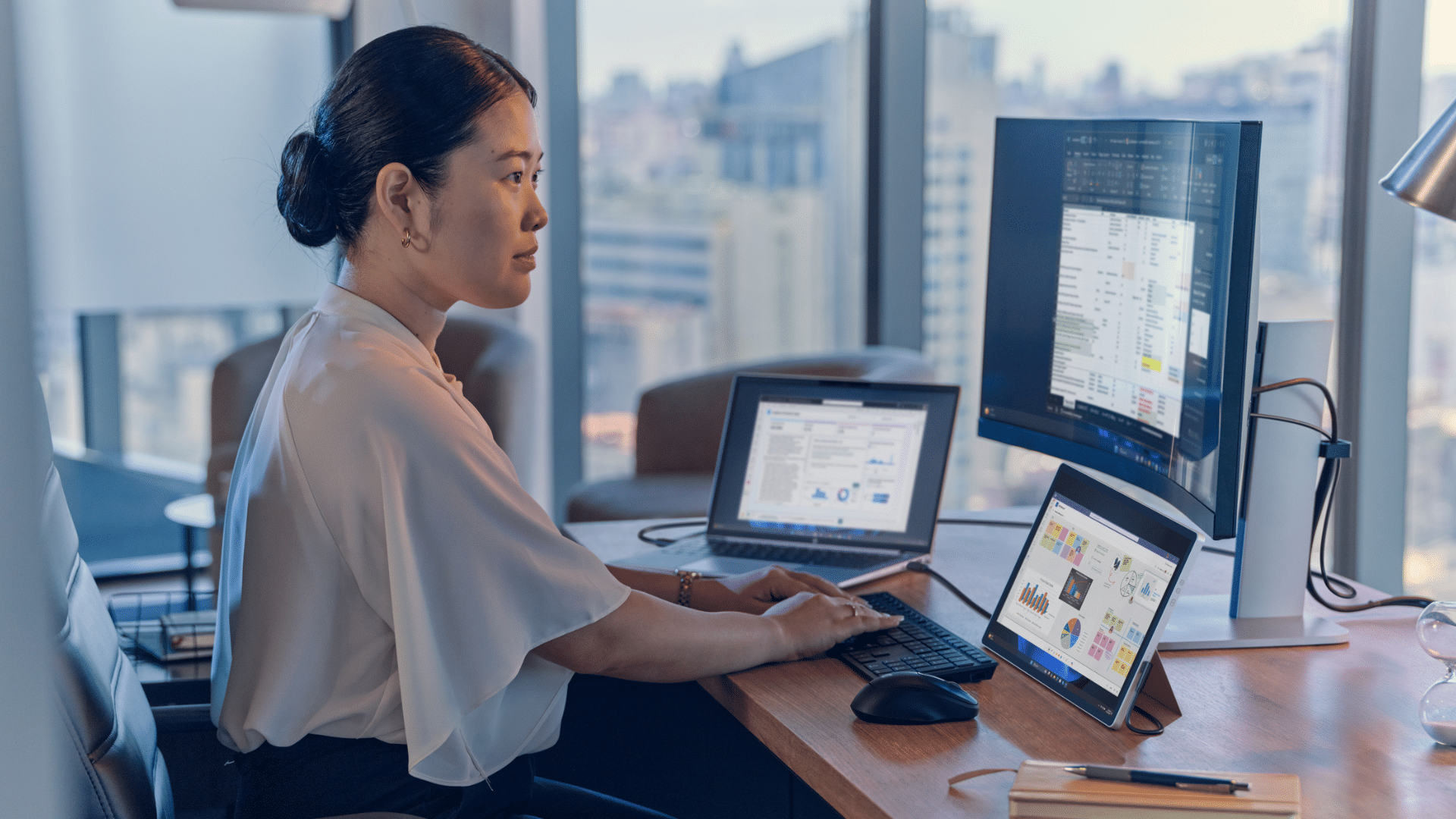
Connecting multiple monitors to a single laptop can be surprisingly difficult. The right setup depends on your laptop, the ports available, and how many displays you want to use.
For many people, a dual-monitor setup or multi-monitor setup enhances the workspace and makes it easier to manage email, spreadsheets, meetings, browsers, and other everyday tasks side by side.
Whether you are adding two or three external monitors, this guide will walk you through what to check before you start, the different ways to connect multiple monitors, how to set them up in Windows, and the best way to arrange your displays.
Click to read the section:
- What to Check Before You Start
- The Different Ways to Connect Multiple Monitors
- How to Connect Multiple Monitors
- How to Arrange the Displays Properly
- How to Use Your Dual Monitor Setup More Efficiently
- Common Problems and Quick Fixes
What to Check Before You Start
Before you begin, check your laptop and monitor ports and how many screens you want to connect. This will help you determine whether you can connect them directly or need additional hardware.
Laptop ports
Common display ports include HDMI, USB-C, Thunderbolt, and DisplayPort.
Monitor ports
Ensure that your monitor inputs match your laptop inputs. If they don’t, you might need the right cable, adapter or docking station, depending on how many monitors you want to set up.
Number of monitors
The more monitors you want to connect, the more likely you are to need a dock or another connection method.
Extra hardware
Depending on your setup, you may need:
- a standard cable
- an adapter
- a docking station
- a hub
Device support
Not every laptop supports the same number of external displays, so it is worth checking before you begin.
The Different Ways to Connect Multiple Monitors
- Direct Connection
If your laptop has the right ports for your monitors, you may be able to connect them directly with standard cables - Adapter
If your laptop and monitor use different inputs, you may need an adapter to connect them. - Docking Station
If you want to connect multiple monitors using fewer laptop ports, a docking station can simplify the setup. - Hub or USB display solution
A hub can add extra ports, but not all hubs support multiple external displays in the same way. Check what the hub can handle before connecting more than one monitor. Some USB solutions may also require drivers - HDMI Splitter
An HDMI splitter can send the same image to multiple screens, but it does not create a true extended desktop. It’s useful for duplicating content, but not if you want each monitor to work independently.
How to Connect Multiple Monitors
- Connect the monitors
Connect each monitor to your laptop, dock, or adapter using the correct cable. Double-check that everything is connected properly. - Turn the monitors on
Switch on each monitor and select the correct input source, such as HDMI, DisplayPort, or USB-C. - Open Display settings
In Windows, go to Start > Settings > System > Display.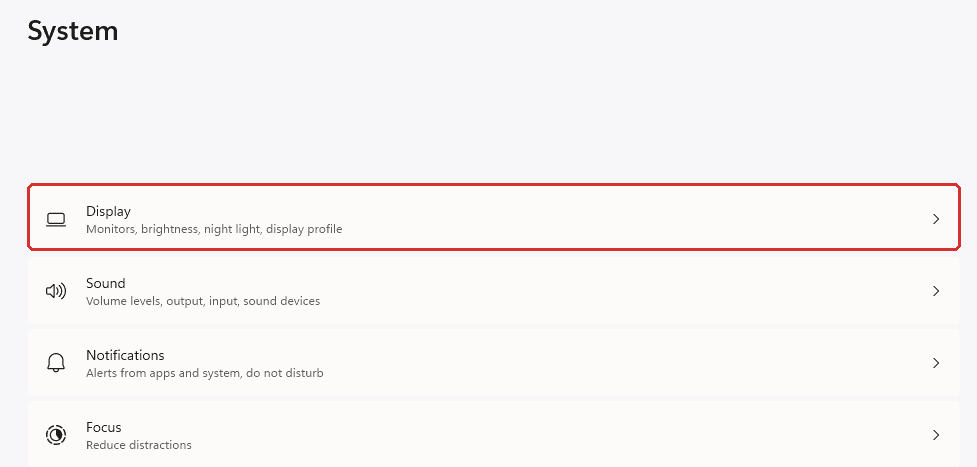
- Select Multiple Displays
If the option is available, select multiple displays under Display settings
- Detect a display if needed
If a monitor is not displaying, go to Multiple displays and select Detect.
If Windows detects more than one display, you can select Identify to see which screen is which. Windows will place a number on each display to help you map the setup. See more here.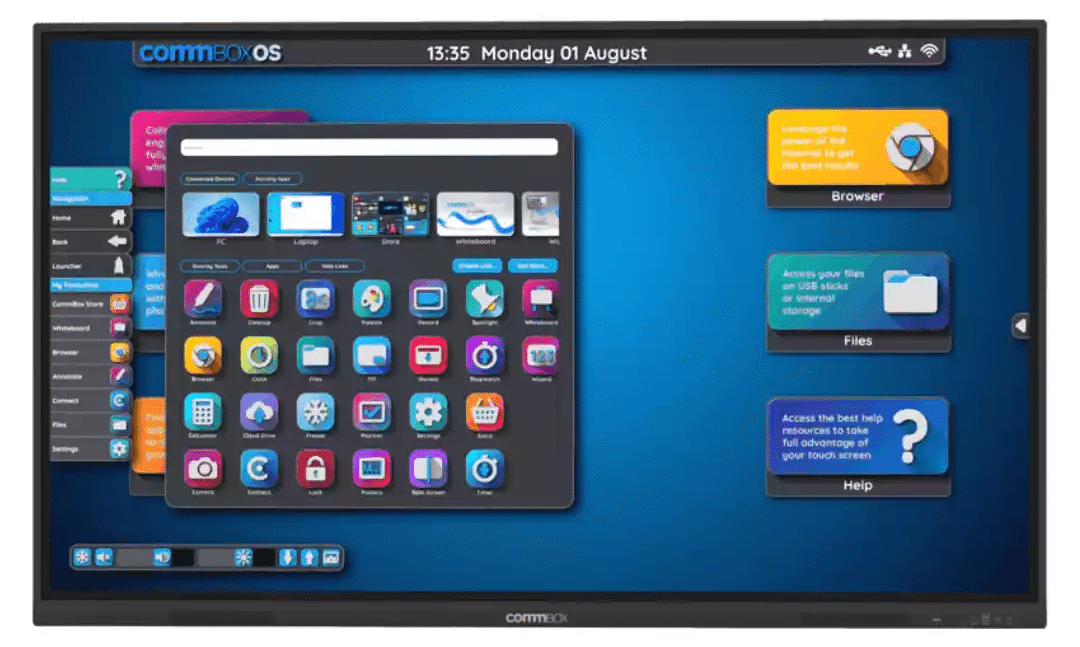
- Choose Extend or Duplicate
Select either Extend or Duplicate. Extend will give each screen its own space, so you can drag different tabs or windows to each screen. If you want the same content on every screen, choose Duplicate instead. You can access these options quickly with Windows + P.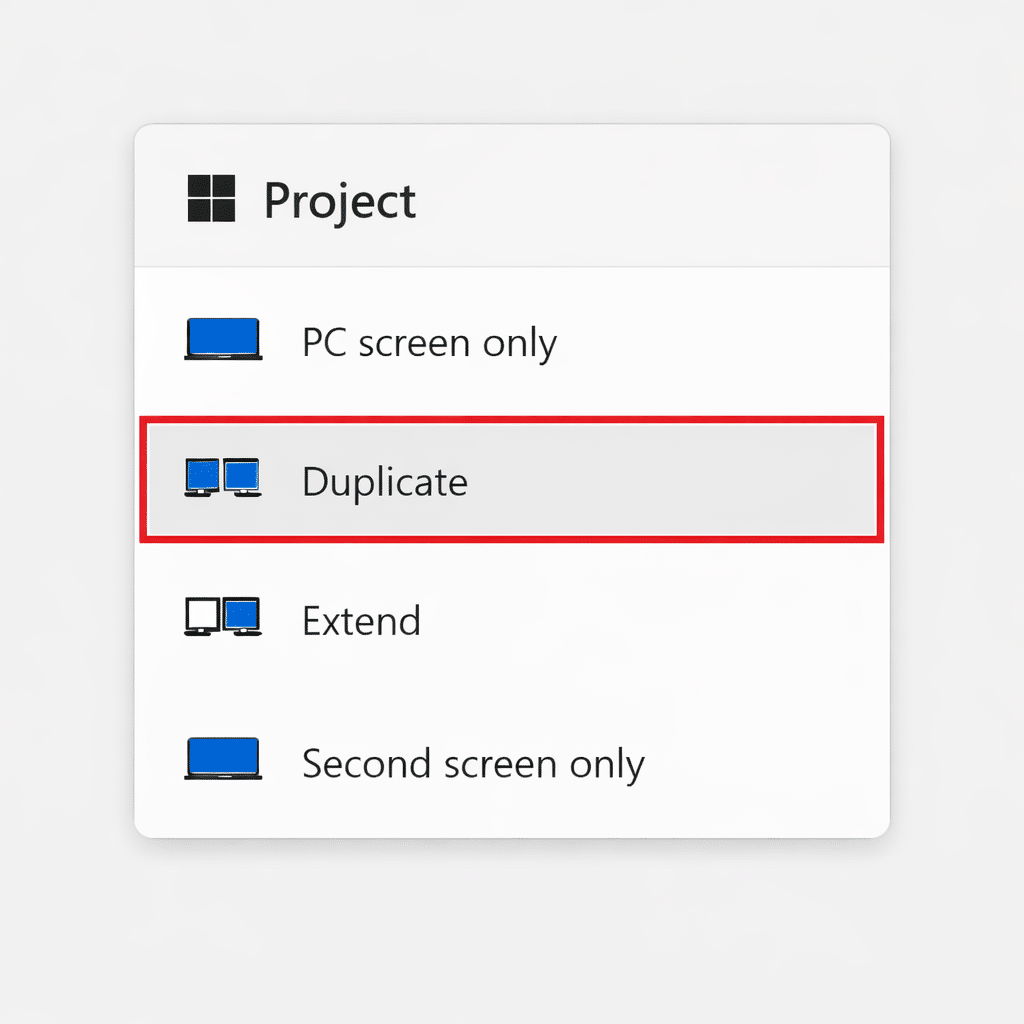
- Arrange the Displays
In Display settings, drag the monitor icons to match the arrangement of your screens at your desk. This makes it smoother to move your cursor between the screens.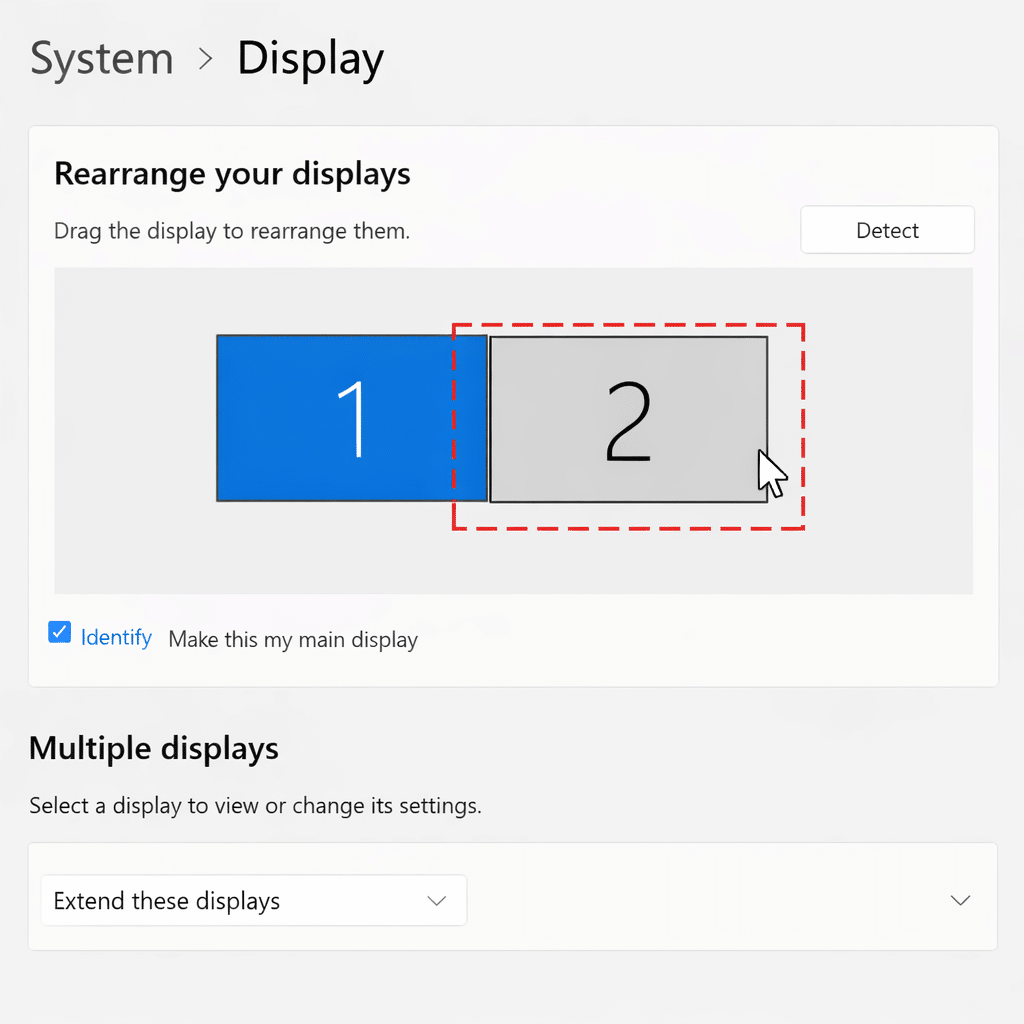
How to Arrange the Displays Properly
Once your monitors have been detected, take the time to arrange them properly in Display settings. This step helps the setup feel more natural in everyday use.
Match the on-screen layout to your desk
Drag the monitor icons to match the physical arrangement of your screens on your desk. For example, if one monitor sits to the right of your laptop, place it to the right in Windows as well.
Use Identify if needed
If you are not sure which screen is which, click Identify. Windows will place a number on each display so you can match them correctly.
Set your main display
Choose the screen you want to use as your main display. This is usually the monitor directly in front of you.
Test the layout
Move your cursor across the screens to make sure it transitions seamlessly between them. If it doesn’t, you can simply adjust the monitor icons until the cursor moves smoothly.
Apply the changes
Select Apply to save your setup.
How to Use Your Dual Monitor Setup More Efficiently
For dual- or multi-monitor setups, Snap can help you make better use of your extra screen space.
Snap is a built-in Windows feature that makes it easy to quickly position windows neatly on each screen. Instead of dragging and resizing everything manually, you can snap them into position and keep multiple apps neatly arranged.
To use Snap, simply drag a window to the side or corner of your screen, or hover over the maximise button to choose a layout.
When a Docking Station is Worth It
A docking station provides a simpler way to connect multiple monitors. They are especially useful if you are:
- Working from a permanent desk
- Your laptop has limited display outputs
- You have a dual monitor or multi-monitor setup
The right dock can simplify your setup and create a cleaner workspace without messy cables.
Common Problems and Quick Fixes
- The second monitor isn’t showing
Check that the monitor is turned on, the cable is connected, and the correct input source is selected. Then go to Settings > System > Display > Multiple displays and try Detect. - Both screens are displaying the same thing
This usually means the displays are set to duplicate or mirror instead of extend. Open the display options and select Extend to have each screen work independently. You can also do this using the Windows + P shortcut. - The cursor isn’t moving where expected
If the mouse is moving the wrong way between screens, the display order is likely set incorrectly. In Display Settings, drag the monitor icons until they reflect the way your screens are actually positioned. - A dock or adapter is connected, but one screen is still blank
Not every dock, adapter, or hub can drive multiple displays the same way. Some setups may require extra drivers.
If you need help with your dual- or multi-monitor setup, or simply want to create better workspaces, Mitronics is here to help. We assist you in choosing the right setup for your needs, along with the right monitors, docks, adapters, and accessories for a complete setup. Contact Us today!

Roger Amir is the Director of Mitronics Corporation Australia, a leading provider of Office Equipment Supplies, Technology, Photocopiers, and Managed IT Services. He oversees strategic operations, helping Australian businesses optimise their workflows and drive productivity. Roger’s expertise focuses on tailored technology strategies, document management, and business efficiency. Connect with him on LinkedIn.